What Are the Common Causes of Touch Screen Malfunctions in Self-Service Kiosks and ATMs?
Dec 08, 2025
When a self-service machine (ATM, ticketing kiosk, payment terminal) stops responding to touch, it causes immediate frustration for customers and downtime for operators. While the symptom is simple—the screen is unresponsive—the underlying causes can be complex, spanning physical damage, system errors, and environmental factors.
Understanding the root cause is the first step toward fast and efficient maintenance. Here is a comprehensive guide to the most common causes of touch screen failure in commercial-grade self-service machines.
Hardware-Related Failures (The Physical Breakdown)
These causes relate to the physical components of the machine and often require inspection and replacement of parts.
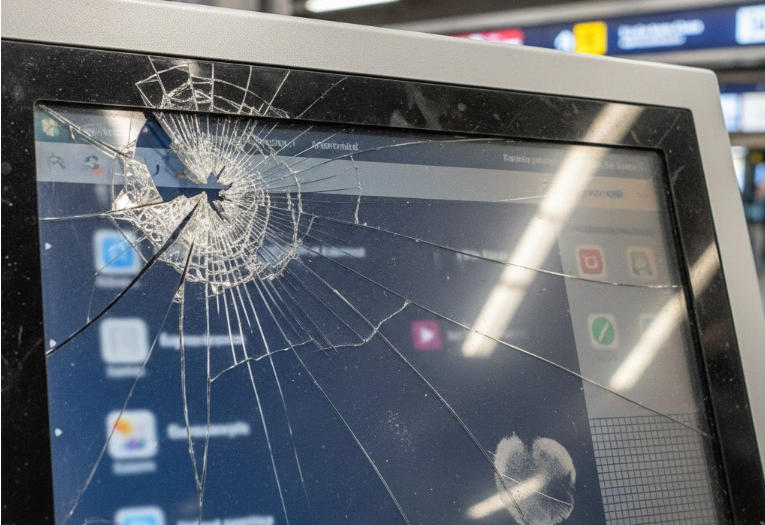
1. Degraded or Damaged Touch Overlay/Panel
The primary cause of non-responsiveness is the physical deterioration of the screen itself. Commercial touch screens rely on highly sensitive surfaces, and their failure modes differ based on their underlying technology:
Capacitive Screens (PCAP): These use an electrical field. A deep scratch, crack, or prolonged liquid exposure can break the conductive layer, leading to dead zones where the electrical field cannot register a touch.
Resistive Screens: These use two flexible layers pressed together by your finger. Constant, heavy use can cause the layers to wear out or delaminate, requiring more force to register input or causing failure altogether.
Infrared Screens: These use an array of light beams around the bezel. If the screen's frame is bent, cracked, or obscured by heavy grime or stickers, the beams are broken permanently, resulting in a constant "phantom touch" or complete failure.
2. Loose or Faulty Internal Cabling
Touch screens rely on dedicated flat flex cables or standard data cables (e.g., USB, HDMI) to transmit input data from the touch controller board to the main computer.
Vibration and Stress: Machines in high-traffic areas (e.g., next to heavy doors or industrial equipment) experience constant vibration. This can cause cables to slowly unseat or become loose from their connectors, leading to intermittent connections or erratic behavior often termed "ghost touches."
Fix: Inspect and reseat all connection cables between the display, the controller, and the PC.
3. Controller Board Malfunction
The touch controller is a small, dedicated circuit board that processes the raw touch input before sending it to the operating system.
If this board suffers a thermal event (overheating), a power surge, or simply reaches the end of its operational life, it will fail to translate the physical touch into a digital signal. The main computer may register the physical monitor, but the touch input device will disappear from the list of connected peripherals.
Software, Driver, and Calibration Issues (The Digital Barrier)
Sometimes, the hardware is fine, but the machine's operating system (OS) is unable to communicate with it correctly.
1. Outdated or Corrupt Touch Drivers
Every hardware component needs a software driver to interface with the OS (Windows, Linux, etc.).
OS Update Incompatibility: A common scenario is a recent mandatory OS update that breaks compatibility with older, proprietary touch drivers. The OS no longer knows how to interpret the data stream from the touch controller, rendering the screen useless.
Driver Corruption: System crashes, sudden power loss, or malware can corrupt the driver files, preventing the system from initializing the touch function upon startup.
2. Improper or Lost Calibration
Calibration is the process of precisely mapping the physical screen coordinates to the digital coordinates reported by the OS.
Why it Fails: This is particularly relevant for older resistive screens. Calibration can be lost due to a hardware reset or a corrupt configuration file.
The Result: The screen either doesn't respond at all, or it responds to an entirely different part of the screen than where the user touched (e.g., you tap the "Yes" button, and the system registers a touch on the "No" button).
3. System Resource Exhaustion
If the kiosk’s main application or OS is suffering from a massive memory leak or excessive CPU utilization, the system may become too sluggish to process user input in real-time.
The user taps the screen, but the input is placed in a processing queue that is backed up. The user perceives the screen as "unresponsive" when in reality, the computer is just too slow to act on the command immediately. A system reboot often clears this issue temporarily.
Environmental and Operational Stress (The External Factors)
Public-facing machines are highly susceptible to factors in their immediate surroundings.
1. Excessive Debris, Grime, or Spilled Liquids
This is the most easily preventable cause, yet it's incredibly common.
Around the Bezel: Heavy dirt, dust, or sticky residues built up around the edges of the display can obstruct the infrared beams or interfere with the capacitive field, leading to inaccurate input or constant phantom touches.
On the Screen: Unlike phones, self-service screens are often exposed to spills. Even after the screen dries, the sugary or acidic residue can create conductive paths that trigger unwanted or erratic touches.
2. Extreme Temperature Fluctuations
Self-service machines placed outdoors or near HVAC vents can suffer extreme thermal stress.
High Heat: Excessive internal heat causes electronic components, including the touch controller, to operate outside their specified range, leading to thermal throttling (slowdown) or outright failure.
Extreme Cold: In very cold environments, certain display layers and the liquid crystal display (LCD) response time can slow down, leading to perceived lag or non-responsiveness.
3. Electromagnetic Interference (EMI)
While rare, strong external electromagnetic fields can disrupt the delicate low-voltage signaling used by the touch system.
Sources: Placing a kiosk too close to industrial motors, high-power speakers, or powerful broadcasting equipment can induce electronic noise into the cabling or the controller board, causing intermittent and random touch responses.
Summary and Maintenance Tips
To maximize uptime and ensure accurate touch functionality, implement a rigorous maintenance schedule:
Scheduled Cleaning: Regularly clean the screen and, critically, the edges and bezels to remove grime and debris.
Regular Driver Checks: Ensure the touch screen drivers and firmware are up-to-date and compatible with the latest OS version.
Physical Inspection: Periodically check and secure all internal cabling to prevent loose connections caused by vibration.