
What should I do if the self-service machine's camera cannot recognize my identification document?
Dec 11, 2025Encountering an "ID not recognized" error at a self-service machine can be frustrating. These kiosks rely on highly sensitive cameras to verify the security features and machine-readable zones on your identification document.
In most cases, the issue is environmental, not electronic. Before calling for assistance, follow this comprehensive, step-by-step guide to quickly troubleshoot and fix common ID scanning failures.
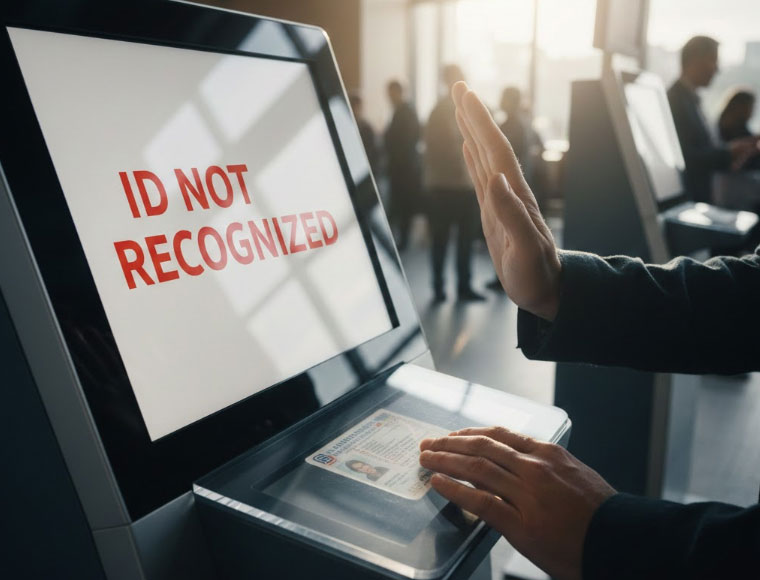
Follow these quick steps, as glare and smudges account for over 80% of self-service machine scanning errors.
The camera cannot read what it cannot see clearly.
Clean Your ID: Use a soft, dry cloth or tissue to gently wipe the entire surface of your identification (e.g., driver's license, passport card). Pay special attention to the photo area and the machine-readable code, as fingerprints cause reflection (glare).
Wipe the Scanner: If safe and accessible, use a clean cloth to gently wipe the glass or plastic cover over the machine's camera/scanner lens. Dust and residue easily collect here.
Ambient light interference is a major cause of document scanner errors.
Shield from Light: If the kiosk is near a window or bright overhead light, use your body or hand to cast a shadow over the ID while it is on the scanning bed. Direct light creates bright spots that obscure holographic security features.
Ensure Flatness: Place the ID completely flat against the scanning surface. If the card is warped or bent, the camera struggles to focus evenly across the entire document.
Center the Scan: Ensure the document is perfectly centered and aligned within the designated white guides or outline on the scanner bed.
Hold Still: Once placed, keep your hands clear and ensure the ID remains absolutely still for the duration of the scan (usually 3–5 seconds). Movement results in a blurred image.
Sometimes, the issue lies with the physical condition or type of document itself.
Damaged/Worn IDs: If your laminated ID is peeling, heavily scratched, or the plastic film is separating, the damage may be distorting the data, leading to a permanent ID verification failure. You may need to use an alternate, undamaged document.
Temporary Paper IDs: If you are using a temporary paper ID, it must be completely flat. If the edges lift, gently hold them down during the scan without covering the data. Paper documents are susceptible to folding or bending, which the scanner interprets as damage.
Unsupported Documents: Ensure you are using an accepted form of ID. For instance, the machine may only be programmed to recognize the standard size and format of a State Driver's License and might not accept documents like a library card or a foreign work permit.
If you have tried the steps above and the machine still cannot read your identification, you need to call for help.
| Action | Goal | Detail |
| Retry Once | Rule out a simple software glitch. | If the machine prompts "Try Again," attempt one final scan after confirming the document is clean and flat. |
| Note the Machine ID | Expedite technician support. | Locate the unique identifier (e.g., APK06 or APK02) usually displayed prominently on the screen or body of the kiosk. Provide this number when you call. |
| Call for On-Site Help | Resolve the hardware failure. | Use the dedicated "Call for Assistance" button on the machine for immediate support. The machine may require a remote reset. |
Key Takeaway: If the machine fails consistently, the camera itself may be misaligned or dirty internally. Providing the support staff with the Machine ID is the fastest way to get the problem fixed.
Tel / Whatsapp : +86 -15999943922
Correo electrónico : nikki@aonpostech.com


© 2026 Tecnología Co., Ltd de Shenzhen Aonpos .Reservados todos los derechos